n8n‑nodes‑mcp: Complete MCP Integration Guide 2025

The Model Context Protocol (MCP) creates a standard way for AI agents to discover and execute tools. Instead of building custom integrations for each AI platform, you expose your workflows through MCP, and agents like Claude or GPT can call them directly.
n8n-nodes-mcp brings this protocol into n8n's workflow automation platform. You can expose existing n8n workflows as tools that AI agents discover and invoke. You can also call external MCP-compliant tools from within your workflows.
This guide covers the technical implementation, configuration, and patterns for using n8n-nodes-mcp effectively.
What is MCP (Model Context Protocol)?
MCP defines how AI agents communicate with external tools. The protocol specifies discovery (listing available tools), invocation (calling a tool with parameters), and response handling (receiving results).
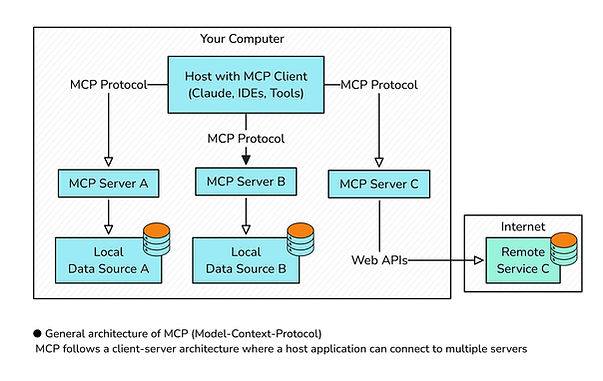
Anthropic introduced MCP as part of their agent architecture work. The protocol uses Server-Sent Events (SSE) for real-time communication and JSON schemas to describe tool capabilities. This lets agents understand what tools do and how to call them without custom integration code.
The protocol separates tool providers (MCP servers) from tool consumers (MCP clients). Servers expose capabilities. Clients discover and invoke them. This decoupling means you can build tools once and make them available to any MCP-compatible agent.
Why use n8n-nodes-mcp?
n8n already handles HTTP webhooks, API calls, and data transformations. n8n-nodes-mcp adds MCP compatibility, which means your workflows become discoverable tools for AI agents.
You get fast integration with Claude Desktop and other MCP clients. Workflows execute in near-real-time when agents call them. You maintain full control over authentication, rate limiting, and execution logic.
Typical use cases include exposing internal APIs as agent tools, building specialized knowledge retrieval systems, automating multi-step processes triggered by natural language requests, and creating tool chains where agents coordinate multiple workflows.
MCP Components in n8n
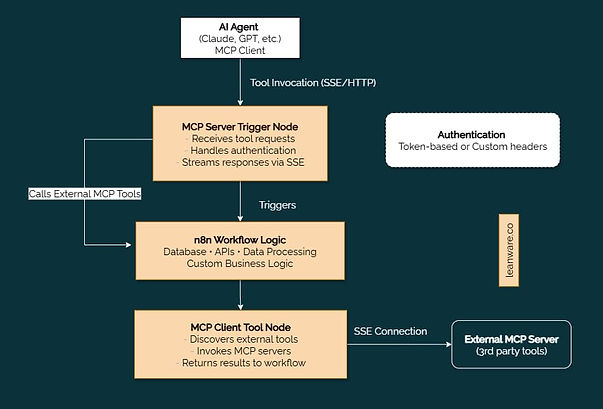
n8n-nodes-mcp provides two main nodes: the MCP Server Trigger and the MCP Client Tool. These handle the server and client sides of the protocol.
MCP Server Trigger Node
This node turns your n8n workflow into an MCP server. It listens for tool invocation requests from AI agents, executes your workflow, and returns results through SSE.
When you add this node to a workflow, n8n exposes an endpoint that MCP clients can discover. The node receives the tool invocation payload, passes it through your workflow, and streams the response back to the calling agent.
MCP Client Tool Node
This node lets n8n workflows call external MCP tools. You configure it to connect to an MCP server, discover available tools, and invoke them with parameters from your workflow data.
The node handles SSE connections, tool discovery, and response parsing. You use it when your workflow needs to call agent-exposed tools or chain multiple MCP services together.
How the MCP Server Trigger Node Works
The node creates an HTTP endpoint that accepts POST requests. When a request arrives, the node parses the MCP payload, which includes the tool name and input parameters. It then triggers your workflow with this data.
The response flows back through SSE. The node maintains a persistent connection with the client and streams workflow output as it completes. This allows agents to receive results without polling.
The event lifecycle works like this: Client sends tool invocation request → Server Trigger receives and validates request → Workflow executes → Results stream back via SSE → Connection closes on completion or error.
Node Parameters
MCP URL
You configure the public URL where the MCP server listens. This typically includes your domain and a specific path like /mcp/tool. If you're running n8n locally, you'll need to expose this endpoint through ngrok, a reverse proxy, or port forwarding.
The URL must be accessible to the MCP client. Cloud-hosted n8n instances automatically get public URLs. Self-hosted deployments require network configuration.
Authentication
The node supports token-based authentication. You set a secret token in the node configuration, and clients must include it in request headers. This prevents unauthorized tool invocation.
Best practices include using long, random tokens stored as environment variables. Rotate tokens periodically and use different tokens for different environments (development, staging, production). Never commit tokens to version control.
Path & Endpoints
The node generates endpoints based on your workflow configuration. The default pattern is /webhook/mcp/:workflowId/:toolName. You can customize the path to match your naming conventions.
Each workflow can expose multiple tools by using the tool name parameter. The node routes requests to the appropriate workflow based on this identifier.
Example Workflows
Integrating with Claude Desktop
Claude Desktop discovers MCP tools through a configuration file. You add your n8n MCP endpoint to this file with the URL and authentication token.
Here's a basic workflow setup:
- Create a new n8n workflow
- Add the MCP Server Trigger node as the first node
- Configure the public URL and authentication token
- Add your workflow logic (database queries, API calls, data processing)
- Connect the final output back to a response node
- Activate the workflow
In Claude Desktop's config file, add:
{
"mcpServers": {
"n8n-tools": {
"url": "https://your-n8n-instance.com/webhook/mcp",
"headers": {
"Authorization": "Bearer your-secret-token"
}
}
}
}
Claude can now discover and invoke your workflow as a tool during conversations.
Other Use Cases
You can expose tools to custom GPTs, internal agent systems, or other automation platforms. The MCP protocol works with any client that implements the specification.
Examples include creating a tool that queries your internal documentation, a workflow that triggers deployment pipelines, or a system that fetches real-time analytics data.
Webhook Replica Configuration
In clustered setups, webhook routing can be tricky. The MCP Server Trigger relies on webhooks, so each request must reach the same instance that opened the SSE connection.
- Use sticky sessions on your load balancer to keep connections consistent.
- Or, dedicate webhook workers separate from execution workers for simpler routing.
- Monitor SSE connections and set timeouts to prevent resource drain. The node includes configurable timeout options for this.
How the MCP Client Tool Node Works
The node connects to an external MCP server, retrieves the list of available tools, and invokes one based on your workflow configuration.
The sequence follows the MCP protocol: connect to SSE endpoint → send tool discovery request → receive tool list → invoke specific tool → receive response → close connection.
You configure which tool to call and pass input parameters from previous nodes in your workflow. The node handles authentication, connection management, and response parsing automatically.
Parameters & Configuration
SSE Endpoint
You specify the base URL of the MCP server. The node appends the protocol-specific paths for discovery and invocation. The endpoint must support SSE and respond with proper content-type headers.
Test the endpoint manually using curl or a tool like Postman to verify it's accessible before configuring the node. Check that authentication works and the server returns valid MCP responses.
Authentication Options
The node supports the same token-based authentication as the Server Trigger. You provide a bearer token or custom header that the MCP server expects.
Some MCP implementations use API keys instead of bearer tokens. Check the server's documentation for the expected authentication scheme and configure accordingly.
Tool Inclusion / Exclusion Rules
When an MCP server exposes multiple tools, you might want to limit which ones your workflow can access. The node includes filters that match tool names or categories.
Use inclusion rules to whitelist specific tools. Use exclusion rules to blacklist tools you want to avoid. This helps when connecting to third-party MCP servers where you only need a subset of capabilities.
Examples
You can chain multiple MCP calls in one workflow:
- Trigger by schedule or webhook
- Call a search tool
- Process results in a code node
- Pass data to a summarization tool
- Send output to Slack or email
This pattern builds knowledge retrieval or summarization workflows without extra integration code.
Setting Up n8n-nodes-mcp
Prerequisites & Requirements
You need n8n version 1.0 or higher. The nodes use features from recent releases and won't work on older versions. Check your n8n version with n8n --version.
Node.js 18+ is required for development or custom modifications. If you're using n8n Cloud, these requirements are already met.
External access matters for MCP Server Trigger nodes. Clients must reach your n8n instance over HTTP/HTTPS. Self-hosted deployments behind firewalls need port forwarding or a reverse proxy.
Installation Guide
Install n8n-nodes-mcp as a community node. In n8n's settings, navigate to Community Nodes and search for n8n-nodes-mcp. Click install and restart n8n.
For self-hosted deployments, you can also install via npm:
cd ~/.n8n/nodes
npm install n8n-nodes-mcp
Restart n8n after installation. The new nodes appear in your node panel under the "MCP" category.
For development or custom modifications, clone the GitHub repository:
git clone https://github.com/your-repo/n8n-nodes-mcp
cd n8n-nodes-mcp
npm install
npm run build
npm link
Then link it to your n8n installation for testing.
Configuration Best Practices
Store authentication tokens in environment variables rather than hardcoding them in workflows. n8n reads environment variables through {{ $env.VARIABLE_NAME }} expressions.
Use HTTPS for production deployments. MCP transmits authentication tokens and potentially sensitive data. TLS encryption protects this data in transit.
Set up monitoring for webhook endpoints. Track response times, error rates, and connection counts. This helps identify issues before they affect agents calling your tools.
Document your MCP tools clearly. Include descriptions, required parameters, expected output formats, and example calls. Agents use this metadata to understand how to invoke your tools correctly.
Designing Effective MCP Workflows
Exposing Workflows as Tools
Define clear inputs and outputs. The MCP Server Trigger passes data as JSON, so validate inputs and return structured JSON responses.
Keep workflows focused on one task. Smaller, specialized tools are easier for agents to use and maintain.
Add error handling that returns clear messages so agents can retry or adjust inputs.
Workflow Discovery & Execution Patterns
MCP clients use metadata to discover tools. Fill out descriptions, parameter schemas, and output formats fully.
Use JSON Schema for validation - define required fields and constraints.
Support both short-running (sync) and long-running (streaming) workflows depending on the use case.
Managing Available Toolsets
Expose different tools per environment with separate tokens.
Organize tools logically with consistent names and version them when making changes to avoid breaking integrations.
Advanced Topics & Optimization
Building advanced MCP workflows often involves custom logic, multi-agent coordination, and performance tuning.
Custom Tool Development
When standard nodes aren’t enough, use Code nodes for preprocessing, validation, or formatting. A common pattern looks like this:
- MCP Server Trigger receives a request.
- Code node validates and transforms input.
- Other nodes perform tasks (API calls, database queries, etc.).
- Code node formats output and returns results.
Reuse helper functions across workflows by keeping them in a shared repo.
Multi-Agent Orchestration
You can coordinate multiple agents through MCP workflows. For example, one agent triggers a workflow that calls another agent’s tools via MCP Client Tool nodes.
Store state data like conversation history or intermediate results in a database so each step maintains context.
Performance Tuning & Scaling
Agent responsiveness depends on workflow efficiency. Cache frequent calls, parallelize heavy tasks, and split large jobs into smaller ones. Use connection pooling to reduce latency, monitor resource usage, and scale n8n horizontally or vertically as volume grows.
Set sensible timeout values in the MCP Server Trigger so agents get clear feedback instead of hanging requests.
Troubleshooting & Best Practices
Connectivity / URL Errors
If agents can't reach your MCP endpoint, verify the URL is publicly accessible. Test with curl:
curl -H "Authorization: Bearer your-token" \
https://your-n8n-instance.com/webhook/mcp
Check firewall rules, DNS resolution, and SSL certificates. Self-signed certificates often cause connection failures in production.
Authentication Failures
401 errors usually mean token mismatches. Verify the token in your workflow matches what the client sends. Check for extra whitespace or encoding issues.
Some clients send tokens in different header formats. The Server Trigger might expect Authorization: Bearer token while the client sends X-API-Key: token. Configure the node to accept the client's format.
Data Format & Schema Mismatch
Schema validation errors occur when agents send data that doesn't match your parameter definitions. Review the error message to identify which field caused the problem.
Update your JSON Schema to accept the actual data format agents send. Common issues include string vs. number types, missing optional fields, and unexpected array structures.
Debugging, Maintenance & Updates
- Trace Workflows: Use n8n execution logs to track data flow and identify failures.
- Audit & Debug: Add Sticky Note nodes to log inputs, outputs, and intermediate steps.
- Monitor Endpoints: Set up external health checks and enable verbose logging for connections and authentication.
- Stay Updated: Follow the n8n-nodes-mcp GitHub for updates and test new versions in staging before production.
- Document Integrations: Record which tools agents use and dependencies to simplify maintenance and troubleshooting.
Next Steps
Begin with a simple workflow connected to Claude Desktop or another MCP client to see how it all works.
Once you’re comfortable, move on to multi-step workflows or coordinating multiple agents for more advanced automation.
You can also connect to our automation experts for guidance on implementing n8n-nodes-mcp and optimizing MCP workflows to streamline your AI agent integrations.